


You do not need paid software to keep track of customers. A well-organized Excel workbook can hold your contacts, deals and follow-ups and give you a forecast. Here is how to build one, including the formulas.
Updated November 2026
What a spreadsheet CRM needs
A customer relationship manager is a record of who you talk to, what you are selling them and what happens next. In Excel that comes down to three tables and a summary: contacts, deals and activities, plus a pipeline sheet that counts them. You can build it in an hour, or start from the CRM template for Excel, which has these sheets and the formulas ready.
Step 1: Create the Contacts sheet
Use one row per person with columns for ID, name, company, email, phone, type, source, owner, last contact and next follow-up. Add drop-downs for type and source so the values stay consistent. Microsoft explains data validation in its support pages. Then add a follow-up flag. With the next follow-up date in column K and the as-of date in Pipeline!B4:
=IF(K5="","Set date",IF(K5<Pipeline!$B$4,"Overdue",IF(K5=Pipeline!$B$4,"Due today","Scheduled")))
Step 2: Create the Deals sheet
Each deal needs a name, a contact, a stage, a value and an expected close date. Make the contact a drop-down that reads from the Contacts sheet, then pull the company in with a lookup so you never retype it:
=IFERROR(INDEX(Contacts!$C$5:$C$104,MATCH(C5,Contacts!$B$5:$B$104,0)),"")
INDEX with MATCH works like VLOOKUP but does not require the lookup column to come first. Use the same pattern to fetch the win probability from the stage table, then calculate the weighted value:
=IF(OR(F5="",G5=""),"",F5*G5)
Step 3: Define pipeline stages and probabilities
A short list works best: Lead, Qualified, Proposal, Negotiation, Closed Won and Closed Lost. Give each open stage a probability based on your own history. The numbers below are illustrations only: 10, 25, 50 and 75 percent for the four open stages, 100 percent for won and 0 percent for lost.
Step 4: Count deals by stage
With stages in Pipeline column A and the deals sheet stage in column E, use COUNTIF and SUMIF for each row of the stage table:
- Deals:
=COUNTIF(Deals!$E$5:$E$104,A9) - Value:
=SUMIF(Deals!$E$5:$E$104,A9,Deals!$F$5:$F$104) - Weighted value:
=SUMIF(Deals!$E$5:$E$104,A9,Deals!$H$5:$H$104)
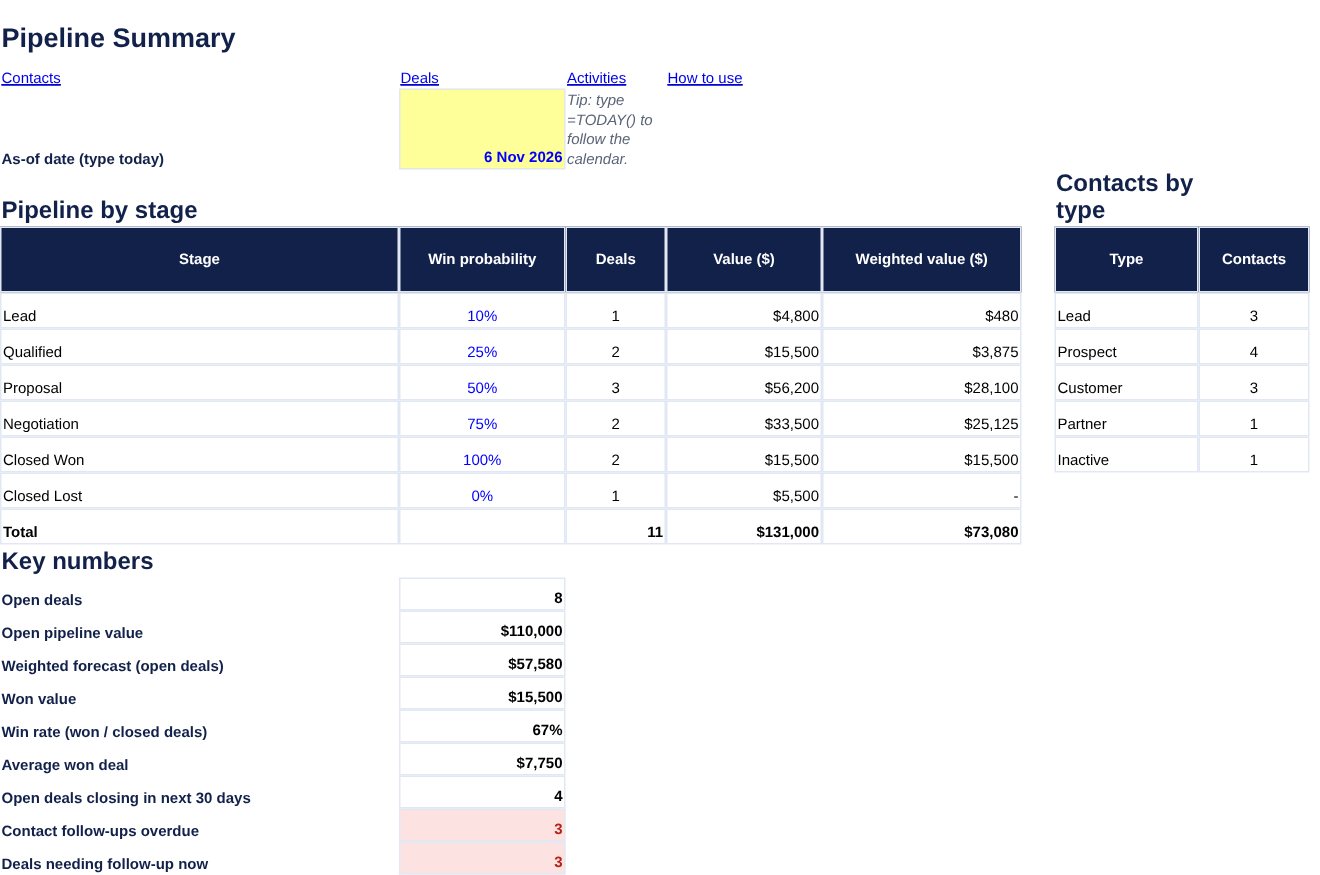
For contacts with more than one condition, such as open deals for one person, use COUNTIFS. Microsoft documents the COUNTIFS function. Here is the stage table for the sample deals:
| Stage | Probability | Deals | Value | Weighted value |
|---|---|---|---|---|
| Lead | 10% | 1 | $4,800.00 | $480.00 |
| Qualified | 25% | 2 | $15,500.00 | $3,875.00 |
| Proposal | 50% | 3 | $56,200.00 | $28,100.00 |
| Negotiation | 75% | 2 | $33,500.00 | $25,125.00 |
| Closed Won | 100% | 2 | $15,500.00 | $15,500.00 |
| Closed Lost | 0% | 1 | $5,500.00 | $0.00 |
Step 5: Read the key numbers
From that table, the sample pipeline has 8 open deals worth $110,000.00. The weighted forecast adds each open stage value times its probability: $480.00 + $3,875.00 + $28,100.00 + $25,125.00 = $57,580.00. Closed won deals total $15,500.00, and win rate is won divided by closed deals: =IF(C13+C14=0,0,C13/(C13+C14)) gives 2 / 3 = 66.7 percent. With an as-of date of 6 November 2026, 4 open deals have an expected close date in the next 30 days. All figures come from sample data.
Step 6: Log activities and follow up
After every call or meeting, add a row to the activity log with the date, contact, type and outcome, and update the contact’s last contact and next follow-up dates. Each day, filter the follow-up flag for Overdue and Due today. A CRM only works when it is updated the same day, so keep the entry short.
When to move on from Excel
A spreadsheet CRM suits one person or a small team with a few hundred contacts. It gets harder when several people edit at once, or when you need email sync and automation. Until then it is cheap, flexible and yours. If you only need to track leads, the free lead tracker template is a lighter start, and the project tracker template helps once a deal turns into delivery.
Frequently asked questions
Can Excel work as a CRM?
For a small team, yes. A few sheets with drop-downs and formulas can track contacts, deals and follow-ups. Larger teams usually outgrow it.
What columns should a contact sheet have?
Name, company, email, phone, type, source, owner, last contact and next follow-up. Add notes if you need them.
What is a weighted pipeline?
Each deal value multiplied by the chance of winning at its stage, then added up. It is a more cautious forecast than the raw total.
How do I stop duplicates?
Use a unique ID for each contact and, if you use Excel 365, highlight duplicates with conditional formatting on the email column.