



Excel is a good place for a to-do list when you need more than a checklist: due dates, priorities, owners and a way to see what is late. You can build one in about fifteen minutes with drop-downs, a few formulas and conditional formatting.
Updated November 2026
Plan the columns first
A to-do list that works has more than a task name. Add columns for what you will filter and sort by. Ten columns are enough for most people: number, task, category, priority, status, due date, owner, days left, flag and notes. The first row holds the headers. Convert them to frozen panes (View, then Freeze Panes) so they stay visible.
If you would rather start from a finished file, the to-do list template for Excel has all of these built in with drop-downs and overdue highlighting.
Step 1: Add drop-downs for consistency
Free text creates problems: “High”, “high” and “urgent” count as three different things. Use data validation so priority and status can only be picked from a list. Select the Priority cells, open Data, then Data Validation, choose List and enter High,Medium,Low. Do the same for Status with Not started,In progress,Blocked,Done. Microsoft explains the steps in its guide to applying data validation to cells.
Step 2: Calculate days left
Put the as-of date in one cell, such as Summary!B4. For a live list, type =TODAY() in it. The TODAY function returns the current date and recalculates whenever the workbook opens. Then, with the due date in column F and status in column E, days left is:
=IF(OR(F5="",E5="Done"),"",F5-Summary!$B$4)
A negative number means the task is late. A finished task shows nothing, because it no longer needs attention.
Step 3: Add a flag column
One formula can turn dates into words you can scan and filter:
=IF(B5="","",IF(E5="Done","Done",IF(F5="","No date",IF(F5<Summary!$B$4,"Overdue",IF(F5=Summary!$B$4,"Due today",IF(F5-Summary!$B$4<=3,"Due soon","Upcoming"))))))
The 3 is the “due soon” window in days. Put it in its own cell if you want to change it.
Step 4: Highlight with conditional formatting
Select the table and add rules with Home, Conditional Formatting, New Rule, Use a formula. Two useful ones: =$E5="Done" with a grey strikethrough font, and =$I5="Overdue" with a red fill. Microsoft lists the options in its page on conditional formatting. Order matters, so keep the Done rule first.
Step 5: Build a summary
Counting is done with COUNTIF. With statuses in E5:E104 and flags in I5:I104:
- Tasks done:
=COUNTIF(E5:E104,"Done") - Total tasks:
=COUNTA(B5:B104) - Completion rate:
=IF(COUNTA(B5:B104)=0,0,COUNTIF(E5:E104,"Done")/COUNTA(B5:B104)) - Overdue:
=COUNTIF(I5:I104,"Overdue") - High-priority and still open:
=COUNTIFS(D5:D104,"High",E5:E104,"<>Done",B5:B104,"<>")
A worked example
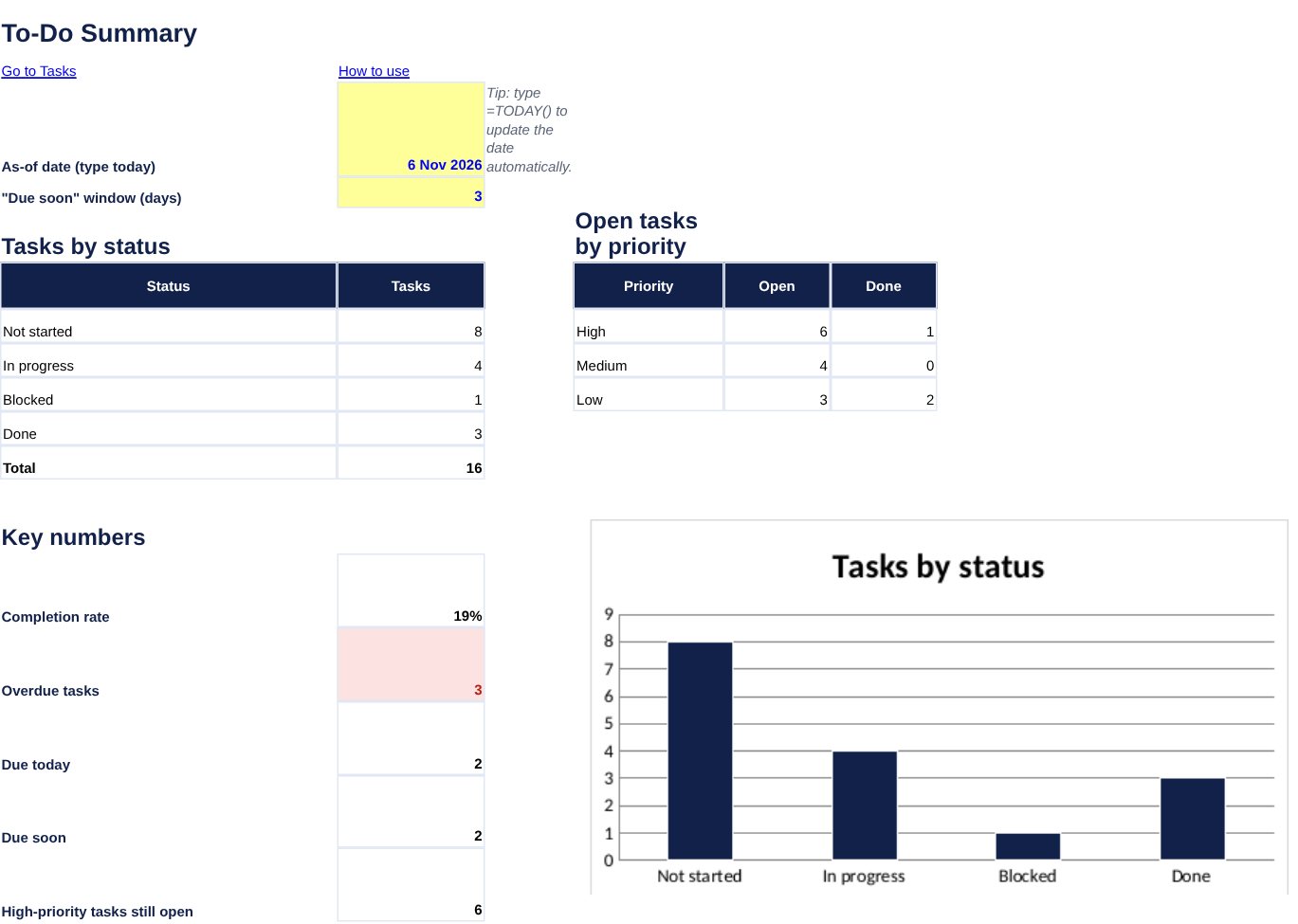
Take a list of 16 tasks and an as-of date of 6 November 2026. Three tasks are done, so the completion rate is 3 / 16 = 18.75 percent. The flags come out like this:
| Measure | Result |
|---|---|
| Tasks in the list | 16 |
| Done | 3 |
| Overdue | 3 |
| Due today | 2 |
| Due soon (next 3 days) | 2 |
| Upcoming | 6 |
| Completion rate | 3 of 16 = 18.75% |
| High-priority tasks still open | 6 |
The by-status counts are 8 not started, 4 in progress, 1 blocked and 3 done. Together they add to 16, which matches the total, a quick check that no task has a missing or misspelled status. These numbers come from sample tasks, so yours will differ.
Common mistakes to avoid
Three things break most spreadsheet to-do lists. First, typing dates as text, such as “Nov 9th”, which Excel cannot compare with today’s date. Enter real dates and format the column. Second, leaving blank rows inside the table, which can make sorting and filtering skip data. Third, letting the list grow forever. Archive finished tasks to a second sheet every month so the active list stays short enough to read in one screen.
Keep it useful
Review the red rows first each morning, and move or delete tasks you will never do. Limit High priority to what truly matters, or everything ends up flagged. For multi-step work, a project tracker shows dependencies better than a flat list, and a checklist template works well for repeated routines.
Frequently asked questions
How do I make Excel mark overdue tasks automatically?
Use a formula that compares the due date with TODAY() and apply it as a conditional formatting rule, or add a flag column that says Overdue.
How do I add a drop-down list for status?
Select the cells, choose Data, then Data Validation, set Allow to List and type the choices separated by commas.
How do I cross out finished tasks?
Add a conditional formatting rule with the formula =$E5=”Done” and choose a strikethrough font. It applies to the whole row.
Should I use TODAY() or type the date?
TODAY() keeps flags current but changes every day, which can confuse a saved report. For a fixed report, type the date.